


STEP 1. LOG IN TO YOUR ACCOUNT
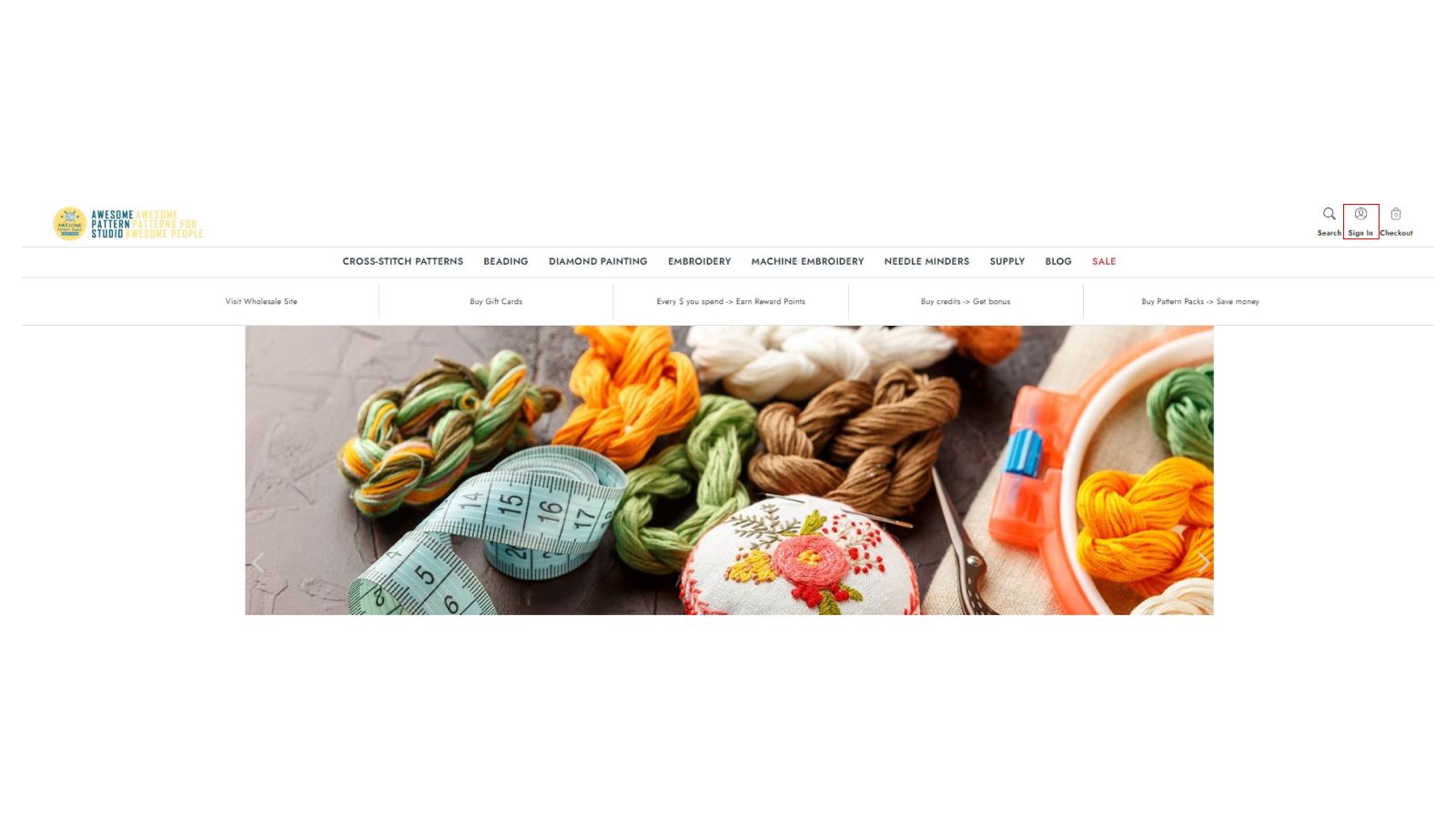
To do this, use the login and one-time password that were sent to your email after the registration was confirmed.
STEP 2. OVERVIEW OF YOUR ACCOUNT
MY APS:
1. Order History. Here you can see the entire history of your orders. Let's see what each of the tabs means:
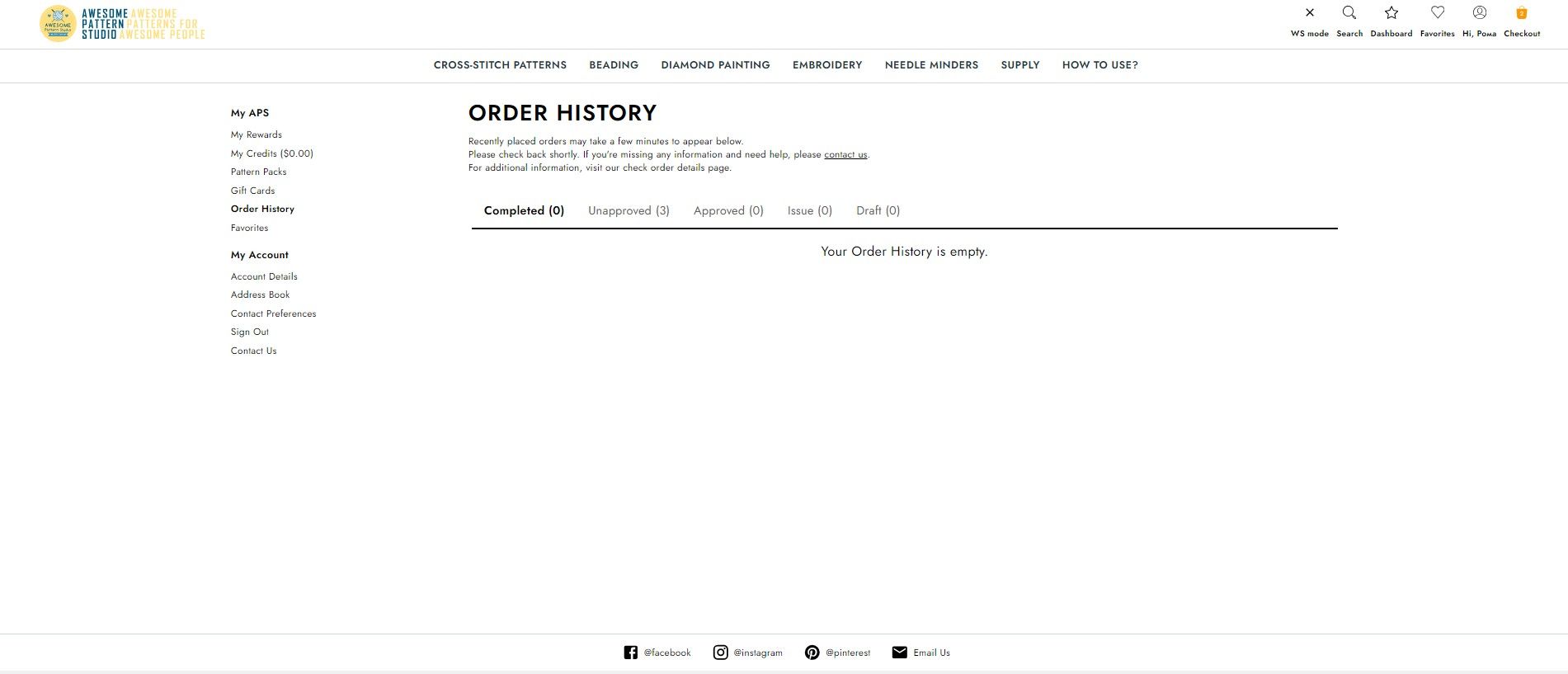
Completed. Your order has been completed, packed, and shipped to you.
Unapproved. You have just placed an order, an invoice has been generated and sent to you by email. After payment, this order will be switched to the "Approved" status. We change statuses manually, so it may take some time.
Approved. After payment of your order, it will be transferred to this status. At this stage, we start assembling your order.
Issued. This status means that there are some issues with your order. They will be described on this tab. You need to fix the described problem in order for the order to change status.
Draft. This is the tab for saving your order and working on it later. You can find this button on the checkout of your order, just click "Save As Draft".
2. Favorites. All the listings that you like will be here. To add any product to your favorites, just click like on the photo of this product.
My Account:
1. Account Details. Here you can find your account details: first and last name, email, and the ability to change the current password.
2. Address Book. Here you can add your Shipping and Billing addresses.
3. Contact Preferences. Here you can mark the items that will be sent to you as a newsletter from us. You can unsubscribe from all messages except service messages.
4. Sign Out. Sign out of your account.
5. Contact us. Contacts for communication with us.
STEP 3. CHANGE YOUR ONE-TIME PASSWORD
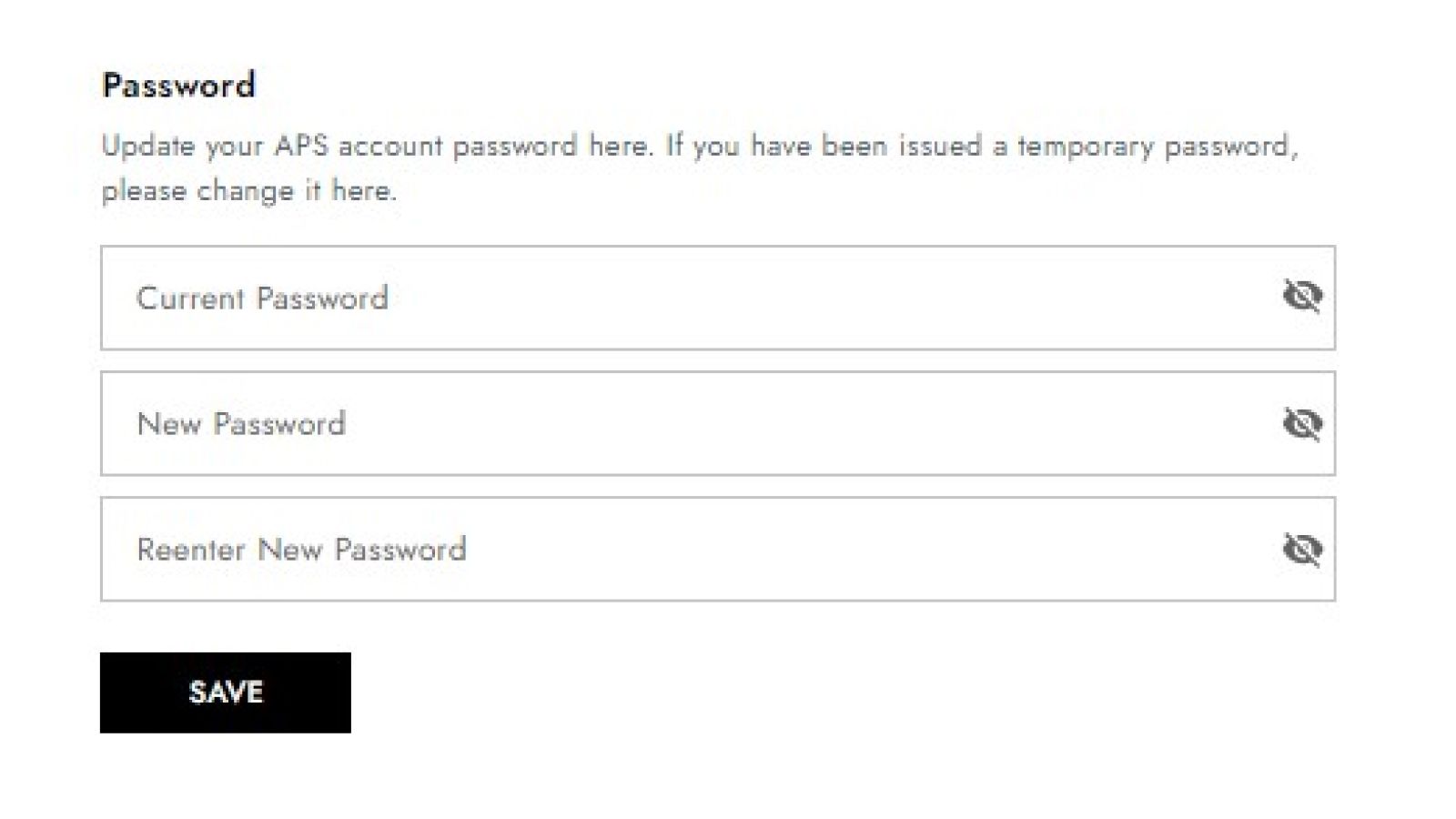
The first thing we advise you to do after you have entered our website is to change the one-time password we sent you to a more secure one. How to do it?
Go to my account ➡ Account details ➡ Select the password field ➡ Enter your current one-time password ➡ Enter your new password in the next two fields.
Your password is changed. Use your new password the next time you log in.
STEP 4. CHANGE YOUR LAST NAME, FIRST NAME, AND EMAIL
If you have a need to change your last name and first name after registration, you can do it without any problems:
Account ➡ Account Details ➡ First Name field to change your Name ➡ Last Name field to change your Surname.
To change your email, you need to follow the same path and change it in the Email field. Please note that after that, all emails will be sent to the new email you changed.
STEP 5. ADD YOUR SHIPPING AND BILLING ADDRESSES
To create addresses, log in to your account ➡ Go to the Address Book tab ➡ Click the "Add Address" button ➡ Fill in all the required information and click the save button.
You can select it as a default by toggling the slider. Be sure to fill in all the data correctly because this is the address to which we will send your parcels.